This section includes the following information:
Database Sparsity
Sparsity is the ratio of data record volumes in the cube compared to the dimensions modeled in the cube. Sparsity can be seen when the Data Unit, defined by the cube, entity, parent, consolidation, scenario, and time, has sparse intersections across the account‑type dimensions, which include account, intercompany, flow, and user‑defined.The absence of data records can affect reporting performance because sparse data makes reports harder to render.
You can minimize sparsity in your application design by utilizing analytic blend, extensibility, or other design frameworks to ensure the Dimension Library is designed for your reporting structure. However, even with an optimal design, sparsity can still occur if a large report pulls in many dimensions. If this is the case, suppression settings help improve reporting performance.
Row and Column Suppression
You can use row and column suppression in larger reports to make them easily readable. This also enables the report builder to create a low maintenance report based on the metadata design.
Complete the following steps to adjust suppression settings:
-
On the Cube Views page, under Cube View Groups, select a Cube View.
-
Select the Rows and Columns slider.
-
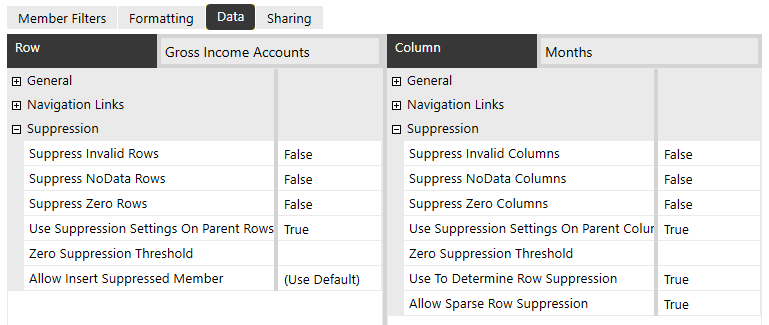
Select the row or column and select the Data tab.
| Property | Description |
|---|---|
| Suppress Invalid Rows/Columns |
This property suppresses any invalid cells when set to True. |
| Suppress NoData Rows/Columns |
This property suppress any cells without data when set to True. When data entry is required, False is the recommended setting. |
| Suppress Zero Rows/Columns | This property suppresses any cells containing zeros when set to True. |
| Use Suppression Settings On Parent Rows/Columns | This property relates to the prior properties and controls whether the parent members in this Member Filter use the same settings. |
| Zero Suppression Threshold |
When the Suppress Zero Rows/Columns property is set to True, enter a threshold value. All numbers below the specified number are recognized as zeros. For example, entering 499.99 results in every number lower than that value being recognized as zero and therefore suppressed. |
| Allow Insert Suppressed Member |
Use this property to access a member currently suppressed for data entry purposes. This can only be used with Cube Views and form templates. You can choose from the following options:
|
| Use To Determine Row Suppression | When set to True, this property improves performance on large Cube Views by enabling the designer to better define how to apply row suppression. |
| Allow Sparse Row Suppression |
When set to True, sparse row suppression is applied to the entire Cube View. It can be turned on and off for specific columns. This provides performance improvements for Cube Views that use multiple nested row dimensions. This works in conjunction with a General Settings property. See Sparse Row Suppression. |
Suppressed Members
This section includes instructions for how to manage suppressed members.
Apply Modify Suppression Property
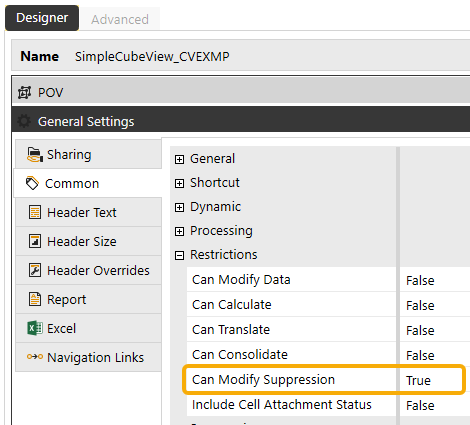
With the Can Modify Suppression property, you can choose whether rows are suppressed from the data explorer grid. This is useful for a small Cube View that will not generate a large number of additional rows if suppression is turned off.
Select a Cube View and go to General Settings > Common > Restrictions and set the Can Modify Suppression property to True.
Modify Suppression
To modify suppression, you must first apply the Can Modify Suppression property. See Apply Modify Suppression Property.
-
Select a Cube View and select the Open Data Explorer
 icon.
-
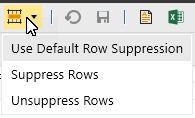
Select the Row Suppression drop-down menu.
-
Choose from the following options:
-
Use Default Row Suppression: Apply the Cube View suppression settings.
-
Suppress Rows: Suppress any rows with zeros or no data regardless of the Cube View settings.
-
Unsuppress Rows: Unsuppress all rows that were suppressed with zeros, no data, or invalid data regardless of the Cube View settings.
-
Apply Property to Allow Insert Suppressed Members
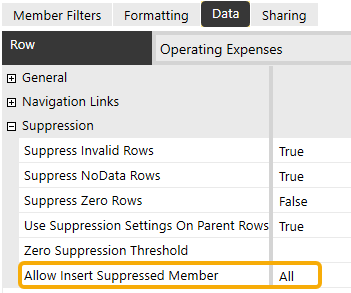
You can insert suppressed members so that their data is entered in the Cube View. Select the Cube View and go to Rows and Columns > Data > Suppression and set the Allow Insert Suppressed Member property to All.
NOTE: The Allow Insert Suppressed Member option is only available for rows.
Insert Suppressed Members
To insert suppressed members, you must first apply the Can Modify Suppression property. See Apply Property to Allow Insert Suppressed Members.
-
Select a Cube View and select the Open Data Explorer
icon. -
Right-click in the account or entity.
-
Select Insert Suppressed Member.
-
To the right of the account or entity field, select Select Member.
-
Select an item and select the arrow to add it to the Result List.
-
Select the OK button and then select the OK button to confirm.
-
Enter data as needed in the white cells.
-
Select the Save button and then select the OK button.
Sparse Row Suppression
Designs for analytic reports typically have multiple dimensions nested in rows. The combination of members generated from the nested expansions can easily result in billions of potential expanded rows, many of which may not have data. In these designs, standard row and column suppression in the Cube View would still require each of those billion rows to be inspected individually for data. So, it is recommended that sparse row suppression be enabled to enhance the performance of a large Cube View when, due to widespread database sparsity, the report is likely to return many records without data and take a long time to run. Sparse row suppression evaluates the data records of the Cube View intersections and filters records with no data (not zeros) before rendering the Cube View.
IMPORTANT: Sparse row suppression cannot be applied to dynamically calculated data through dynamically calculated members and Cube View math. Avoid errors by correctly applying the settings on the dynamically calculated columns.
NOTE: When sparse row suppression is applied, OneStream assesses all row data before displaying the Cube View. Cells containing dynamic calculations are populated on-the-fly. When OneStream assesses the rows of data, the rows containing dynamically calculated data are omitted from the Cube View because the data is not saved in the database.
To enable sparse row suppression in Cube Views, complete the following steps.
-
Select a Cube View and go to General Settings > Common > Suppression.
-
Set Allow Sparse Row Suppression property to True.
-
In the Rows and Columns slide, select the row and then select the Data tab.
-
Ensure that the additional row suppression properties you will use are also set to True.
NOTE: Any row assigned a suppression setting is enabled for sparse row suppression. If no suppression is applied, sparse row suppression are not applied.
-
In the Rows and Columns slider, select the column and then select the Data tab.
-
Under Suppression, set Allow Sparse Row Suppression to True.
-
Ensure that the additional column suppression properties you will use are also set to True.
NOTE: If columns contain dynamically calculated data, set Use to Determine Row Suppression and Allow Sparse Row Suppression to True to avoid an error.
Cube View Paging
Cube View paging is only applied to the data explorer view of a Cube View and is used to enhance the performance of Cube Views containing more than 10,000 unsuppressed rows. The Cube View will attempt to return up to 2000 unsuppressed rows within a maximum processing time of 20 seconds. The purpose of paging is to protect the server from large Cube Views that could affect application performance.
Evaluations are performed on the potential size of the rows and the processing requirements to determine if paging is enabled and the number of rows returned.
Evaluations are performed on the potential size of the rows and the processing requirements to determine if paging is enabled and the number of rows returned.
-
Evaluation 1: Enable Paging. This evaluation is performed on the entire Cube View to determine the total number of possible unsuppressed rows that will be generated. If the total number of potential unsuppressed rows is less than 10,000, no paging is enabled.
-
Evaluation 2: Paging Enabled. If the total number of unsuppressed rows is greater than or equal to 10,000, paging is enabled.
-
Evaluation 3: Paging. Once paging begins, the Cube View evaluates the rows attempting to return a minimum of 20 to a maximum of 2000 unsuppressed rows. In the case of nested dimensions on rows, the evaluation starts on the left-most dimension expansion, as defined in the Cube View. After a maximum processing time of 20 seconds, the first page of the Cube View is returned for display containing only the rows that completed processing during the time constraint.
For this reason, Cube View pages are not a fixed number of rows. The rows are ultimately determined by their time to process. This also relates directly to the percentage display because each page is generated by processing time requirements, and the last page is not known while the Cube View is running. Therefore, this percentage is not intended to be a precise measurement.
When a row is defined with nested dimensions, the paging evaluation is performed on the left-most dimension. For each expansion of the left-most dimension, the paging will not progress to the next sibling until all records are returned by all other dimension expansions to be completed.
To set the properties, select a Cube View and go to General Settings > Common > Paging. The following properties are available:
-
Max Unsuppressed Rows Per Page: This property determines how many rows are written before the Cube View starts paging. The default value is -1. The maximum value is 100,000.
-
Max Seconds To Process: This determines how many seconds the Cube View processes before it starts paging. The default value is -1. The maximum value is 600 seconds.
See Cube View Paging for more information on how to cancel a long-running Cube View through Task Activity.

